

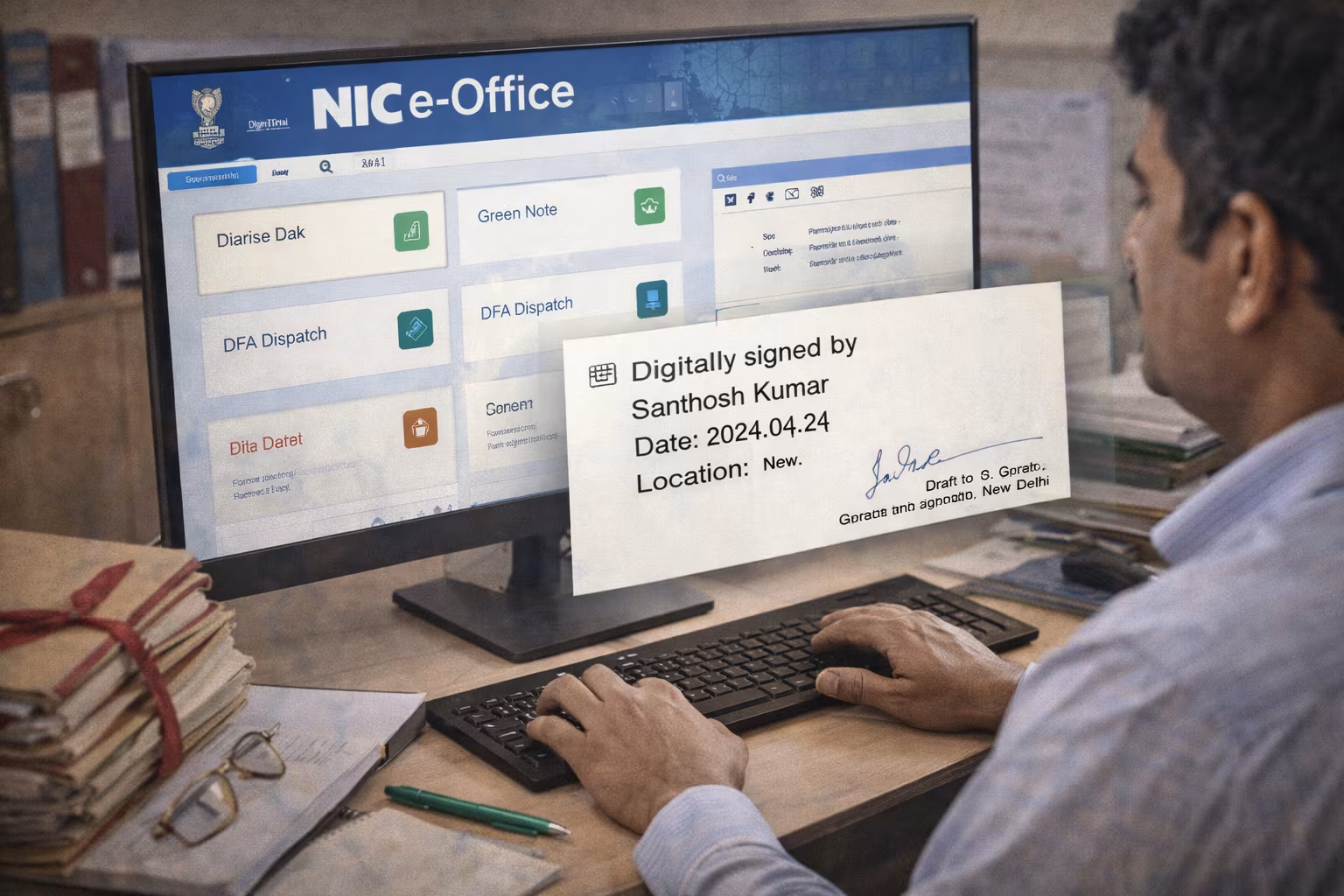
Department of Administrative Reforms (DARPG) Update: e-Office Version 7.0 Guidelines. Target Audience: LDC, UDC, ASO, SO & Under Secretaries. Status: Mandatory implementation for “Zero Paper Office”.
The Central Secretariat Manual of Office Procedure (CSMOP) has mandated the use of NIC e-Office for all official correspondence. This guide serves as a desk manual for Central Government employees to master the art of “Noting” (Green Sheet) and “Drafting” (DFA) electronically, ensuring files move seamlessly from the Dealing Hand to the Competent Authority.
Note: All new files must be opened in e-Office only. Physical files should be digitized and migrated using the “Browse & Diarise” feature.
1. Handling Receipts (The “Dak” Stage)
Every file begins as a “Receipt” (PUC – Paper Under Consideration). The Diarist or Dealing Officer must convert physical/email mail into an e-Receipt.
| Step | Action in e-Office |
|---|---|
| 1. Upload | Click “Browse & Diarise”. Upload PDF (Max 20MB). Ensure it is searchable (OCR). |
| 2. Meta Data | Fill mandatory fields: Sender Name, Designation, Ministry, Subject. |
| 3. Generate | Click “Generate” (to keep in inbox) or “Generate & Send” (to mark to Officer). |
| 4. Attach | Open a File > Click “TOC” (Table of Contents) > “Attach Receipt”. |
Common Error: Do not attach multiple unrelated receipts to a single file. Each distinct subject requires a separate e-File or a “Part File” volume.
2. The Art of “Noting” (Green Note)
The “Green Note” is the heart of the decision-making process. In e-Office, this is the left-side panel where the history of the case is recorded.
Standard Note Structure (CSMOP Rule)
- Para 1 (History): “Reference is invited to the PUC (Receipt No. XYZ) regarding [Subject]…”
- Para 2 (Facts/Rules): “As per DoPT OM dated [Date] regarding [Rule], the entitlement is…” (Always hyperlink the OM).
- Para 3 (Analysis): “In view of the above, the proposal is in order / needs clarification because…”
- Para 4 (Proposal): “Accordingly, approval of the Competent Authority is sought for…”
- Para 5 (Submission): “Submitted for perusal and orders please.”
Tip: Use the “Reference” button to link previous Notes or Receipts. Do not type “Placed alongside” – instead, use “Hyperlink”.
3. Drafting & Dispatch (DFA)
Once the decision is taken on the Green Note, a “Draft for Approval” (DFA) is prepared to communicate the decision to the external party.
Drafting Process (Yellow Note)
1. Click “Draft” > “Create New”.
2. Type the letter/OM.
3. Fill Recipient Details.
4. Click “Save” (Status: DFA).
Approval & Dispatch
1. Officer clicks “Approve”.
2. Click “Custom Sign” or “DSC Sign”.
3. Click “Dispatch” (Email/Post).
4. Status changes to “Issued”.
4. Essential e-Office Tools for Staff
To work efficiently, every ASO/SO must know these utility features:
- DSC (Digital Signature Certificate): Mandatory for signing drafts. Ensure your USB token driver is installed.
- Parked Files: Use this to hide inactive files from your main inbox without closing them.
- Migrate File: Used to transfer a physical file number into the electronic system.
- Urgency Grading: Mark files as “Immediate”, “Priority”, or “Most Immediate” using the grading dropdown.
What is the difference between Green Note and Yellow Note?
The Green Note is the internal noting sheet used for discussion and approval within the department. The Yellow Note refers to the Draft (DFA) which, once approved and signed, becomes the official letter sent out of the department.
How to attach a previous file in e-Office?
While writing a note, click the “Link” icon > Search for the File Number > Select the specific Note Para or Page > Click “Attach”. This creates a hyperlink for the officer to cross-reference.
हिंदी सारांश: ई-ऑफिस नोटिंग और ड्राफ्टिंग
ई-ऑफिस (e-Office) में सरकारी काम करने का सही तरीका: सबसे पहले पत्र को स्कैन करके ‘Diarise’ करें। फाइल पर निर्णय लेने के लिए ‘Green Note’ में टिप्पणी लिखें (तथ्य, नियम और प्रस्ताव)। जब अधिकारी मंजूरी दे दें, तो ‘Draft’ (DFA) बनाएं और डिजिटल हस्ताक्षर (DSC) के साथ ‘Dispatch’ करें। फिजिकल फाइलों को सिस्टम में लाने के लिए ‘Migrate’ विकल्प का उपयोग करें।


