

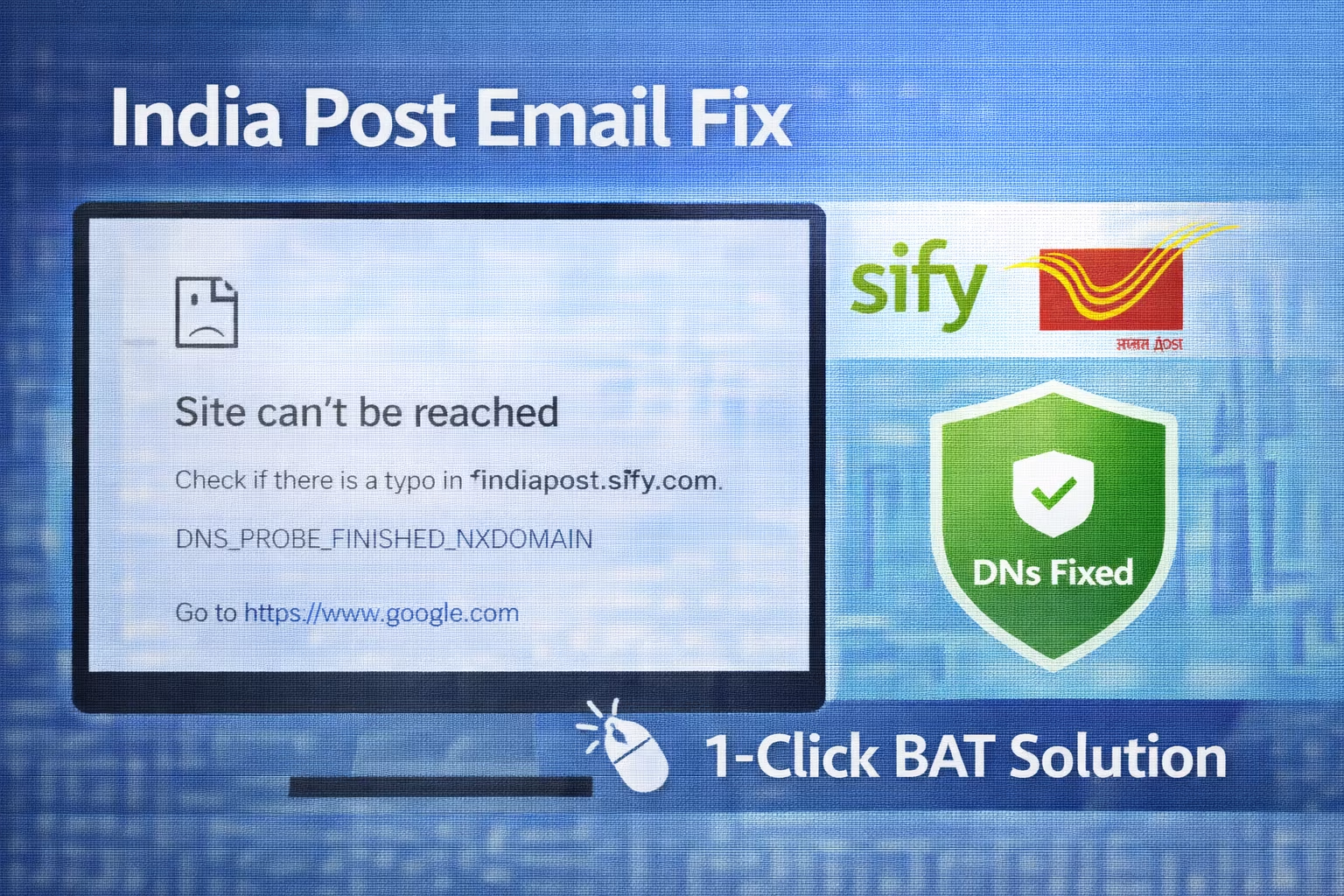
Technical Alert: Thousands of Department of Posts (DoP) offices across India relying on the Sify Network (NSP 1 / NSP 2) are currently facing a critical connectivity issue. Users have reported being unable to access the official India Post NIC Email service (email.gov.in or mail.gov.in) despite having an active internet connection. This issue is specifically rooted in a DNS (Domain Name System) conflict within the Sify intranet configuration.
If your office computer displays errors like “This site can’t be reached” or “DNS_PROBE_FINISHED_NXDOMAIN” while trying to open the NIC email, do not panic. This is not a server crash. It is a local configuration error that can be resolved by correctly configuring the TCP/IPv4 DNS settings to point to the official NIC internal resolvers.
⚠️ The Issue: NIC Email fails to load on Sify Network.
✅ The Solution: Configure Official NIC Internal DNS IPs.
🛡️ Safety Status: Standard IT Configuration (No Software Installation).
Method 1: Automatic Fix (Script & Download)
To simplify the process, we provide a standard batch script. You can either copy the code below to create the tool yourself (Recommended for safety) or download it via Google Drive.
Tool 1: The DNS Fixer (Run this first)
This script switches your adapter to “Static DNS” mode, adds the four required Sify/NIC IP addresses, and clears your old cache.
IndiaPost_DNS_Fix.bat
@echo off
title India Post Sify DNS Configurator
cls
echo ==========================================
echo      India Post NIC Email DNS Patcher
echo ==========================================

REM --- CONFIGURATION ---
REM Note: If your adapter is named "Local Area Connection", change "Ethernet" below.
set adapter="Ethernet"

echo.
echo [1/6] Configuring Primary DNS (172.23.224.35)...
netsh interface ipv4 set dnsservers %adapter% static 172.23.224.35 primary validate=no

echo [2/6] Configuring Secondary DNS (172.23.224.36)...
netsh interface ipv4 add dnsservers %adapter% 172.23.224.36 index=2 validate=no

echo [3/6] Configuring Tertiary DNS (172.31.224.35)...
netsh interface ipv4 add dnsservers %adapter% 172.31.224.35 index=3 validate=no

echo [4/6] Configuring Quaternary DNS (172.31.224.36)...
netsh interface ipv4 add dnsservers %adapter% 172.31.224.36 index=4 validate=no

echo [5/6] Flushing DNS Cache...
ipconfig /flushdns

echo.
echo ==========================================
echo      Configuration Complete!
echo      Please restart your browser.
echo ==========================================
pause
📥 Prefer to Download?
📝 How to Create & Run This Yourself
- Open Notepad on your computer.
- Copy the code from the black box above.
- Paste it into Notepad.
- Go to File > Save As.
- Important: In “Save as type”, select “All Files”.
- Name the file
Fix.bat. - Right-click the saved file and select Run as Administrator.
Method 2: Manual Configuration (Step-by-Step)
If you are unable to run the script, follow these manual steps. You will need Administrator rights on your PC.
Step 1: Open Network Connections
Press Windows Key + R, type ncpa.cpl, and press Enter. This opens your Network Adapters list.
Step 2: Access Adapter Properties
Right-click on your active internet connection (usually named “Ethernet”) and select Properties.
Step 3: Select IPv4 Protocol
Find Internet Protocol Version 4 (TCP/IPv4) in the list, highlight it, and click the Properties button.
Step 4: Add Official NIC DNS IPs
Click the Advanced… button (bottom right) > Go to the DNS tab. Click Add… and enter the following IPs strictly in this order:
| Priority | IP Address | Network Type |
|---|---|---|
| 1st | 172.23.224.35 | Primary NIC DNS |
| 2nd | 172.23.224.36 | Secondary NIC DNS |
| 3rd | 172.31.224.35 | Failover DNS 1 |
| 4th | 172.31.224.36 | Failover DNS 2 |
Method 3: Reset Network Settings (Undo Changes)
If you face any connectivity issues after applying these changes, or if you switch to a different network provider (non-Sify), you should revert your settings to default (Automatic/DHCP).
Reset_Network_Settings.bat
@echo off
title Network Settings Reset
cls
echo ==========================================
echo      Resetting Network Adapter...
echo ==========================================

REM Set this to your adapter name (Ethernet/Wi-Fi)
set adapter="Ethernet"

echo Resetting DNS to DHCP (Automatic)...
netsh interface ipv4 set dnsservers %adapter% source=dhcp

echo Flushing DNS Cache...
ipconfig /flushdns

echo.
echo Done! Internet settings have been reset.
pause
🔄 Need to Reset?
Why This Fix Works? (Technical Explanation)
The DNS Conflict Explained:
The India Post NIC email servers operate on a restricted government intranet. When connected via Sify MPLS, your computer needs a specific “map” (DNS Server) to locate these private servers. Public DNS providers (like Google’s 8.8.8.8) do not have the addresses for these internal government servers. By manually adding the 172.xx.xx.xx addresses, you are simply telling your computer where to look for the NIC email server.
Is this script official?
This script is based on the standard configuration parameters recommended by network administrators for Sify-connected offices. It automates the manual steps found in standard troubleshooting guides.
Will this work for Broadband/FTTH?
No. These specific IPs (172.xx) are internal Private IPs accessible only through the Sify MPLS network. If you are using BSNL FTTH or private broadband, you should use standard DNS settings.
हिंदी सारांश
सिफी नेटवर्क (Sify) पर इंडिया पोस्ट की ईमेल न खुलने की समस्या को ठीक करने के लिए DNS सेटिंग्स में बदलाव करना आवश्यक है। हमने एक सुरक्षित स्क्रिप्ट (कोड) दी है जिसे आप ऊपर दिए गए गूगल ड्राइव लिंक से डाउनलोड कर सकते हैं। यह कोड आपके कंप्यूटर में उन आधिकारिक आईपी एड्रेस (172.23.xx) को जोड़ देगा जो ईमेल सर्वर को खोजने के लिए जरूरी हैं। यदि कोई समस्या आए, तो आप ‘रीसेट स्क्रिप्ट’ का उपयोग कर सेटिंग्स को पहले जैसा कर सकते हैं।


